Relax a crystal and check the result
This guide walks through the structure viewer from an empty screen to a result you can trust. No terminal, no scripts. If you know what a relaxation is, you already know enough to use it.
What it does
The viewer takes a crystal structure, relaxes it with a machine-learned potential, and lets you inspect the outcome atom by atom. A relaxation moves every atom until the forces on it are small, which is how you find the shape a structure actually settles into.
The work happens in four steps, shown as tabs at the top of the right-hand panel: 01 Structure, 02 Setup, 03 Run and 04 Result. You move through them in order, and you can go back to an earlier step at any time.
Your first run
Keep every default the first time. The starter structure is tantalum carbide with six carbon atoms missing, a real case where the gaps are what you want to study.
- Pick a structure. Choose Tantalum carbide, carbon vacancies. Structure
- Check the setup. Relax positions, Orb v3, stop below 0.02 eV/Å. Setup
- Run it. Watch the forces fall as the atoms settle. Run
- Read the result. Confirm it converged, then look around. Result
Step 1 · Structure
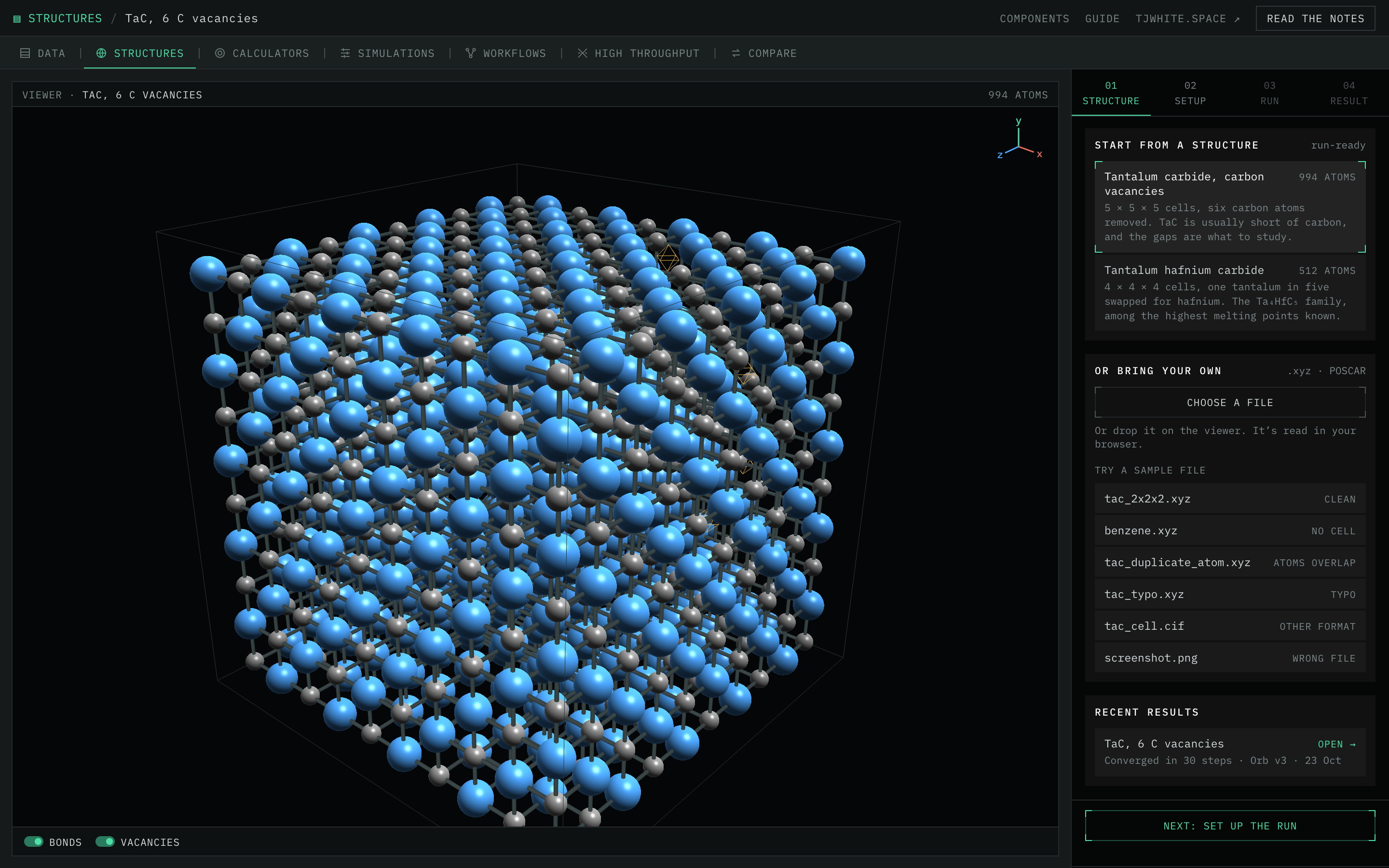
Start from one of the two ready-made structures, or bring your own file. Whatever you pick appears in the viewer straight away, so you can check it’s the right thing before going further.
 123456
- 1Starter structures. Ready to run. The atom count sits on the right.
- 2Your own file. Choose one, or drop it on the viewer. It’s read in your browser and never uploaded.
- 3Sample files. Six small files, each showing one kind of problem. Useful for seeing how checks work.
- 4Recent results. Jump straight to a finished run.
- 5Next. Unlocks once a structure is picked.
- 6Vacancy markers. Small octahedra mark where atoms are missing.
Files can be .xyz, extended XYZ or POSCAR, up to 100 MB and 729,000 atoms. When you load one, the panel lists a few quick checks: the format it read, the elements it found, the unit cell and the closest pair of atoms. Each check is marked ✓ fine, ! usable with a warning, or ✕ can’t use. Problems are covered in When things go wrong.
Step 2 · Setup
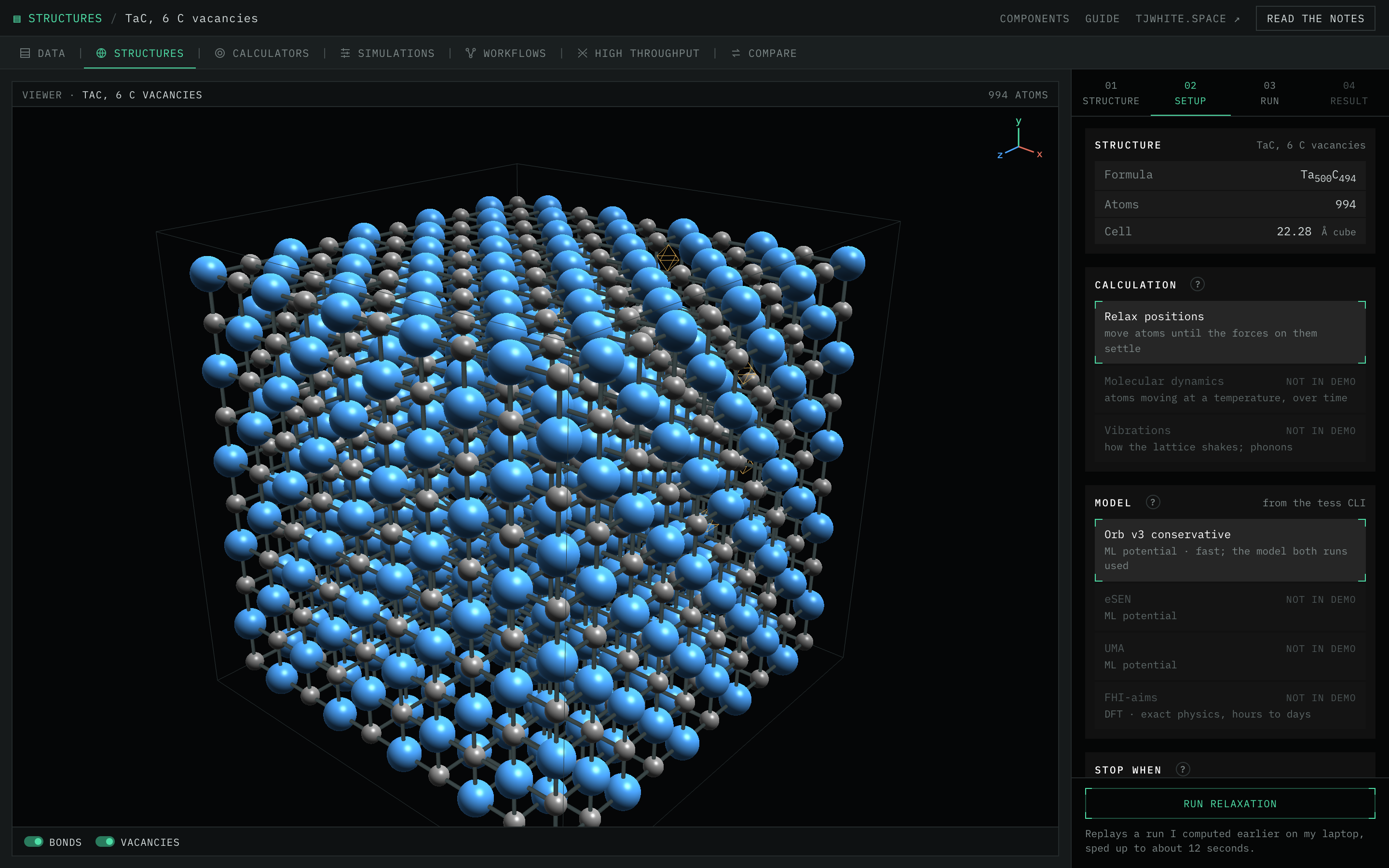
Setup confirms what you’re about to run and how it should stop. The defaults suit a first run.
 12345
- 1Structure. Formula, atom count and cell size, to confirm you picked the right one.
- 2Calculation. Relax positions. Other types are listed but not part of this demo.
- 3Model. Orb v3 conservative, a machine-learned potential that stands in for slower quantum physics.
- 4Stop when. The force target and the step limit. Scroll the panel to see them.
- 5Run relaxation. Starts the run.
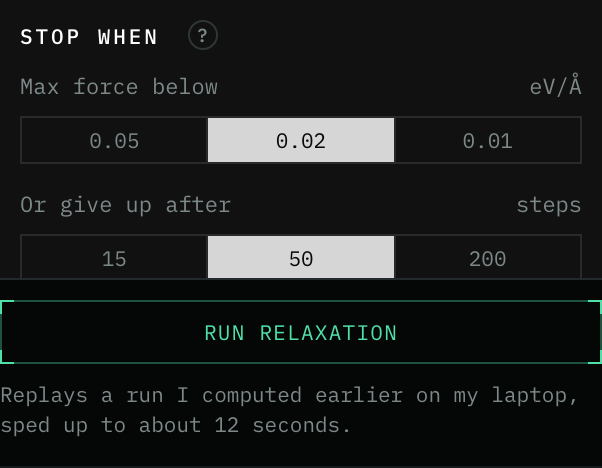
Stop when. The run ends at the first step where the largest force drops below the target, or when it hits the step limit, whichever comes first.
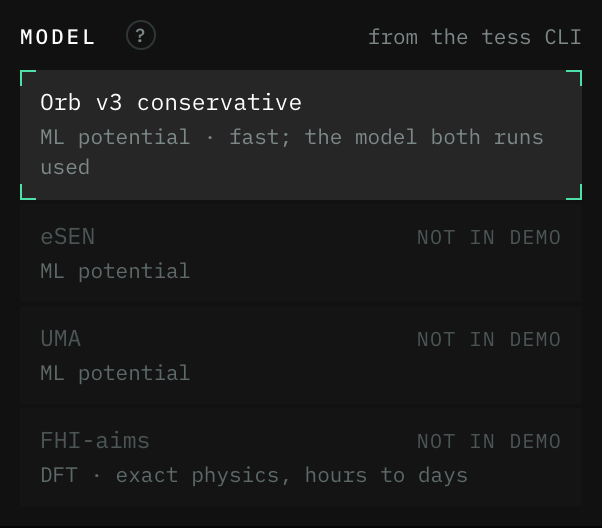
Model. Every option is listed so you can see what the full product offers. Only Orb v3 runs in this demo.
Step 3 · Run
Once a run starts, the result screen fills in live. Atoms are coloured by the force on them, so you can watch the hot spots cool as the structure settles. The convergence chart draws one point per step.
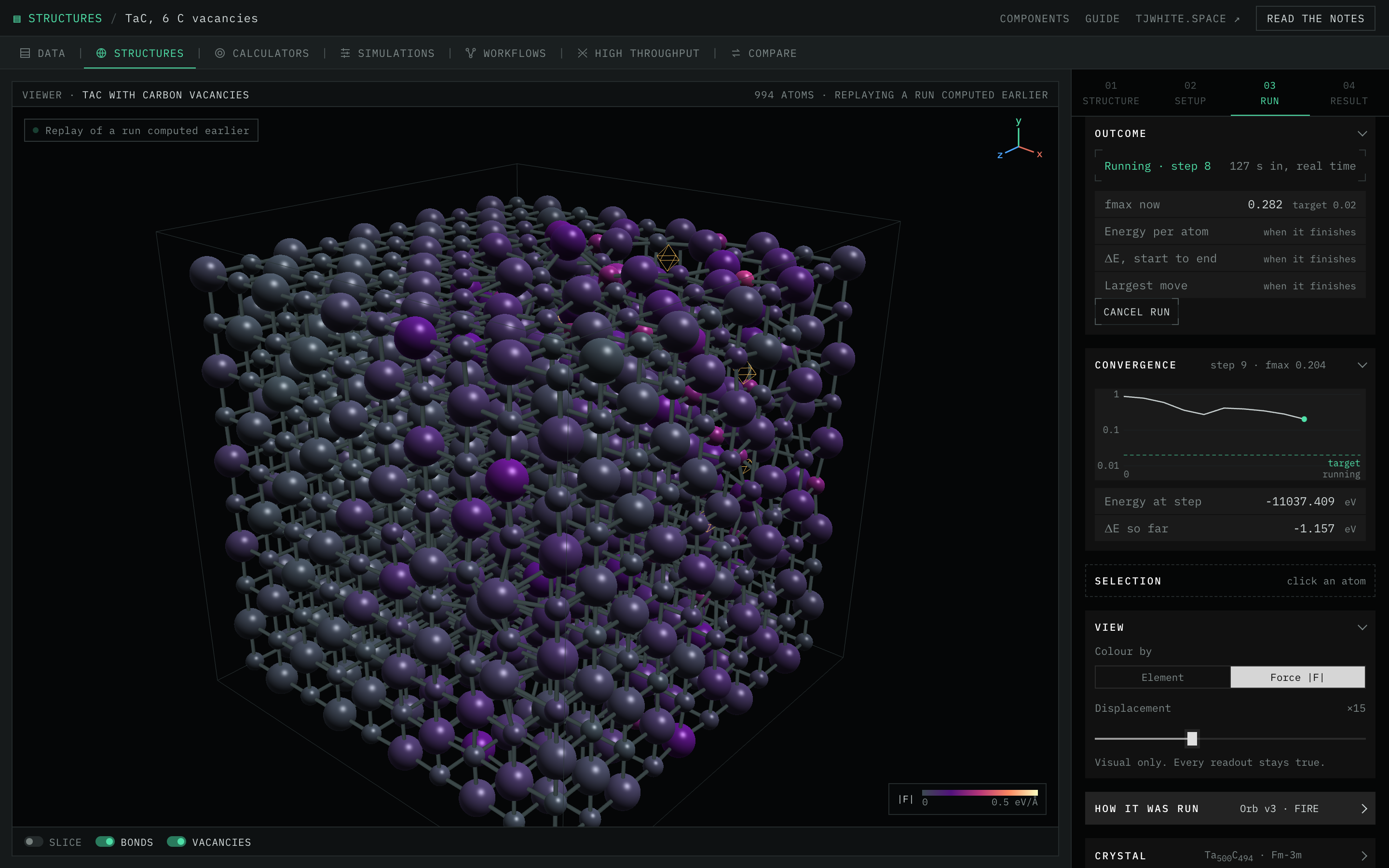 123456
- 1Status. The current step and the time the original run had taken at this point.
- 2Max force now against the target. Final energies appear when the run finishes.
- 3Cancel run. Stops the run and keeps the steps taken so far.
- 4Convergence chart. The largest force at each step, on a log scale.
- 5Force colours. Bright atoms are under strain. They fade as the run settles.
- 6Replay tag. A reminder that this demo replays a run computed earlier.
You can stop at any time with Cancel run. The steps already taken are kept, and the result is clearly marked as unfinished.
Step 4 · Result
When the run ends, the same screen becomes the result. Everything on it stays interactive: scrub through the steps, click atoms, change how things are drawn.
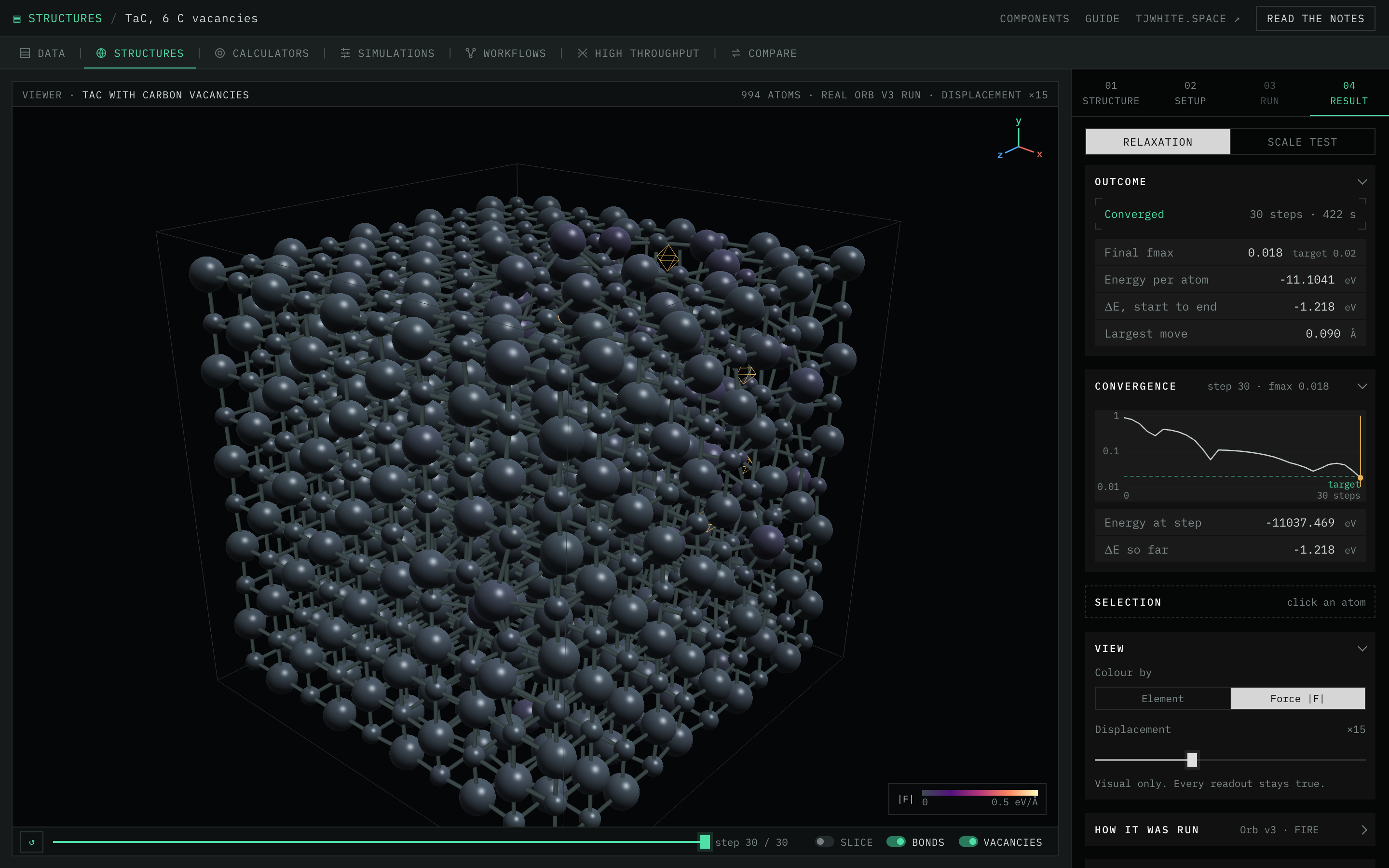 123456
- 1Outcome. Converged or not, how many steps, and the numbers that matter.
- 2Convergence. The full force curve, with the target as a dashed line.
- 3Selection. Click any atom to see its details here.
- 4View. Colour by element or force, and how much to exaggerate movement.
- 5Timeline. Replay the run or drag to any step.
- 6Layers. Slice through the crystal, and show or hide bonds and vacancy markers.
Reading the result
Start with the outcome block. For the starter run it reads Converged · 30 steps · 422 s, meaning the largest force fell below the target after 30 steps, which took 422 seconds on the original machine.
| Readout | What it tells you |
|---|---|
| Final fmax | The largest force on any atom at the last step, in eV/Å. Below the target means the structure has settled. 0.018 against 0.02 here. |
| Energy per atom | Total energy divided by atom count, in eV. Useful for comparing structures of different sizes. |
| ΔE, start to end | How much energy the relaxation released. Negative means the structure became more stable. |
| Largest move | The furthest any single atom travelled, in Å. Small moves mean the starting structure was already close. |
Checking it’s trustworthy
A converged run is necessary but not enough. Three quick checks tell you whether the physics makes sense:
- The curve flattens before the target. A smooth fall that levels off is healthy. A curve that jumps around or is still dropping steeply at the end deserves a second look.
- Atoms next to a gap behave as expected. Click an atom beside a vacancy marker. In tantalum carbide each atom normally has 6 neighbours of the other element, so an atom next to a missing carbon should show 5. The panel flags it in amber with
missing 1. - The cell size matches measured values. The starter cell is 22.28 Å across five unit cells, so 4.456 Å per cell, in line with the measured lattice constant of tantalum carbide.
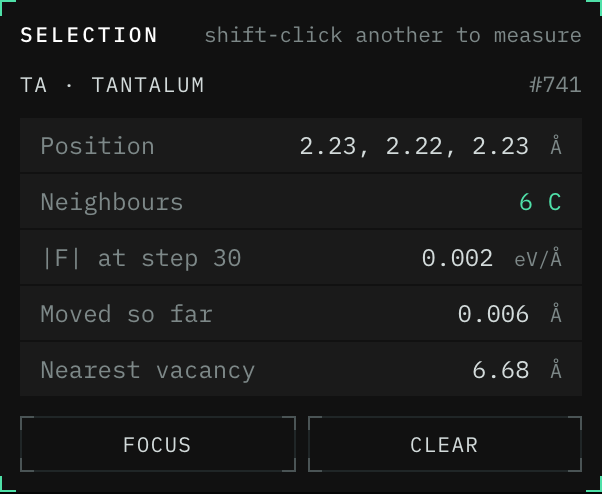
Selection. Element, position, neighbours, the force on it at this step, how far it has moved and the nearest vacancy. Shift-click a second atom to measure the distance between them.
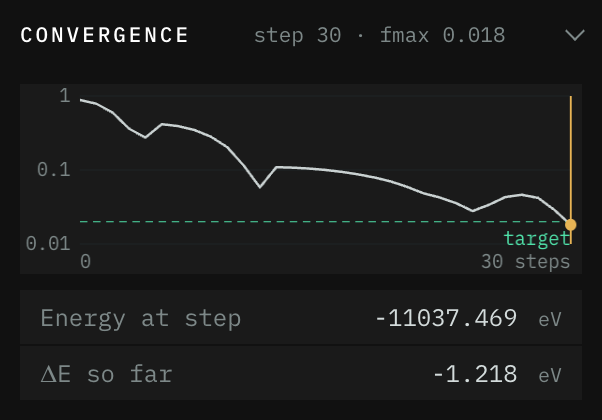
Convergence. Read it left to right: the largest force at each step, falling toward the dashed target line.
About the displacement slider. Movements in a relaxation are tiny, often a few hundredths of an ångström, so the viewer exaggerates them (×15 by default) to make them visible. It only changes the drawing. Every number in the panel stays true.
When things go wrong
Problems are reported where they happen, in plain words, with the next step attached. Here’s what each one looks like and what to do.
Problems with a file
| Message | What it means and what to do |
|---|---|
| !No unit cell | The file has atoms but no repeating box, which is normal for a molecule. Press Add 10 Å of vacuum to put it in a box of empty space. |
| !Two atoms almost on top of each other | Usually a duplicated atom. A run would start with huge forces. Press Show me to zoom to the pair, then fix the file. |
| ✕“Tq” isn’t an element | A typo in an element symbol. The message gives the line number and the likely intended element. |
| ✕Couldn’t read this as a structure | The format isn’t supported here. CIF files are recognised but not read in this preview. Convert to .xyz or POSCAR. |
| ✕Not a structure file | The file isn’t text, an image for example. Drop an .xyz, extended XYZ or POSCAR instead. |
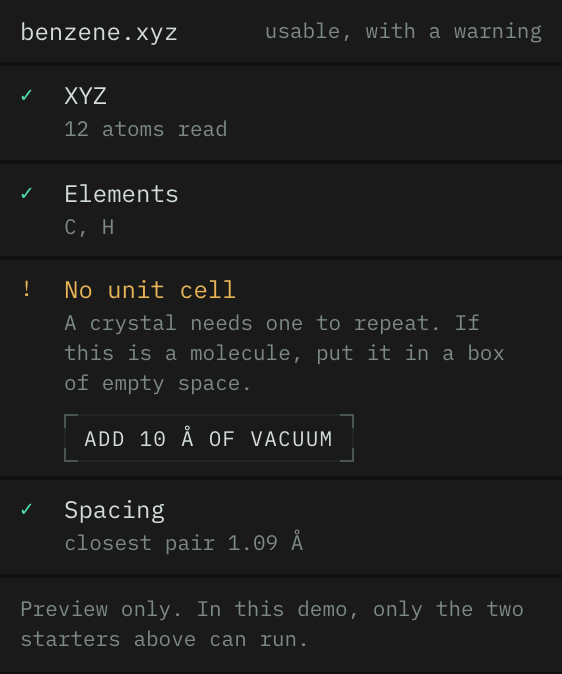
Warning. Usable, with a fix one press away.
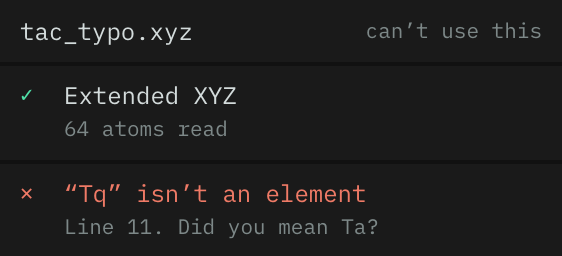
Can’t use. Says exactly where the problem is.
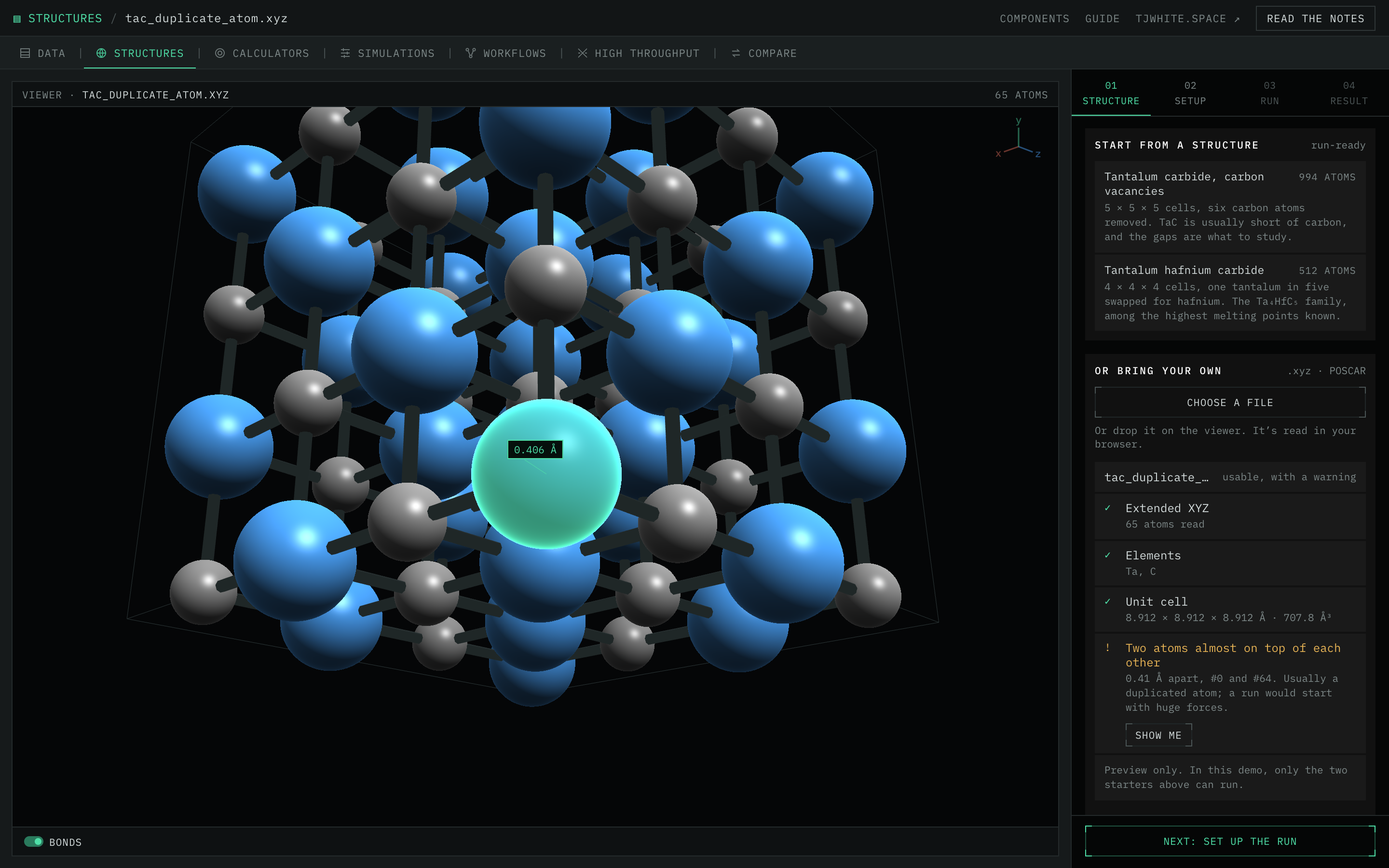
Show me on an overlap warning zooms the viewer to the two atoms and labels the distance between them.
Problems with a run
| Outcome | What it means and what to do |
|---|---|
| Not converged | The run hit its step limit while forces were still falling. The numbers shown are real but unfinished. Press Change settings, raise the step limit and run again. |
| Cancelled at step N | You stopped the run. Positions are partly relaxed, so treat the numbers as unfinished. |
| Run button disabled | You picked a force target tighter than the saved run was computed to. In this demo that would need a fresh run, so Run stays off and setup says why under the button. |
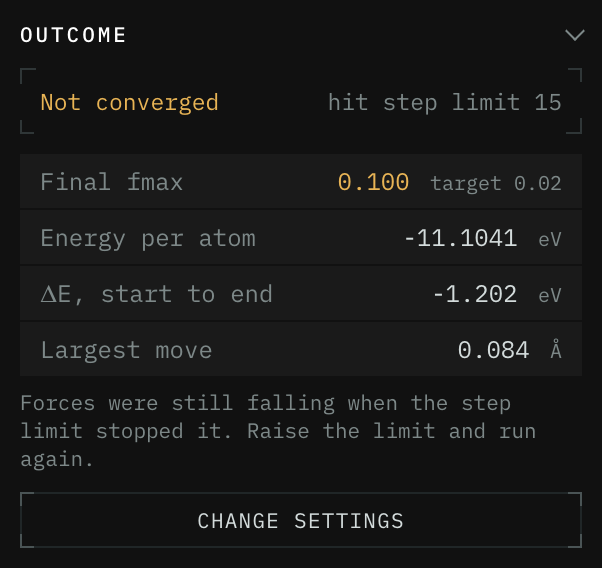
Not converged. Marked in amber, with the reason and a way back to setup.
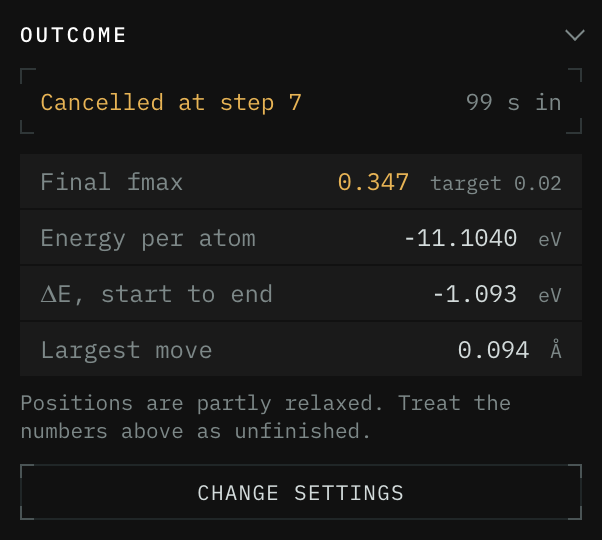
Cancelled. Kept, and labelled so it can’t be mistaken for a finished run.
Settings explained
Every setting in step 2, in plain words. The defaults are a sensible starting point for most crystals.
| Setting | What it does |
|---|---|
| Calculation | Relax positions moves atoms until the forces on them settle. The full product also lists molecular dynamics (atoms moving at a temperature over time) and vibrations (how the lattice shakes). Those aren’t part of this demo. |
| Model | What calculates the forces. Orb v3 conservative is a machine-learned potential: fast, and trained to approximate quantum calculations. eSEN and UMA are other ML potentials. FHI-aims is DFT, slower but closer to exact physics, taking hours to days. |
| Max force below | The force target, in eV/Å. 0.05 is a quick, rough relaxation. 0.02 is the usual default. 0.01 is tighter and takes more steps. |
| Give up after | The step limit: 15, 50 or 200. If the target isn’t reached by then, the run stops and is marked not converged. |
| Optimizer | FIRE decides how far to move atoms at each step. It speeds up while the atoms keep moving downhill in energy, and stops and starts over gently when they overshoot. |
| Time per step | How long one step took on the machine that ran it. Shown for the starters. Not measured for your own files. |
In the viewer
| Control | What it does |
|---|---|
| Colour by | Element colours atoms by type. Force |F| colours them by the force on them at the current step, using the scale in the bottom corner. |
| Displacement | How much to exaggerate movement in the drawing, ×1 to ×40. Readouts are unaffected. |
| Slice | Cuts the crystal along a plane so you can see inside. Snaps to atom layers. |
| Bonds · Vacancies | Show or hide bonds and the vacancy markers. |
| Click · Shift-click | Click an atom to select it. Shift-click a second atom to measure the distance. |
What’s real here
This is a concept, built from public research and open tools. It isn’t affiliated with Atomic Tessellator. Here is exactly what’s real and what isn’t.
- Real. Both starter runs are genuine Orb v3 relaxations, computed on a laptop CPU and saved as
.atrajtrajectory files with the openatomicttools. Every number on screen comes from those files. - Replayed. Pressing Run replays a finished run in about 12 seconds. The full product would send it to a GPU queue and stream the steps back live.
- Read only. Your own files are read and checked in the browser, but can’t be run here.
- Synthetic. The scale test under 04 Result builds a perfect lattice of up to 729,000 atoms to show viewer performance. It isn’t a simulation.